Hello Excellers, welcome to another blog Excel post in my #ExcelTips 2021 series. Today let’s look at why Excel Is changing the last digit of a number to zero. That’s correct Excel changes the last digit to zero sometimes. If you have ever come across this, it can be confusing and damn frustrating. You type a long number into Excel, and weirdly anything past digit 15 appears as zeros. So if you are entering a credit card number, which is usually 16 digits, then the last is displayed as a zero.

Because Excel only stores 15 significant digits in a number, Excel changes any remaining digits to zeros. As the formatting of the cell is numbers, Excel interprets the numbers as being intended for calculation. Okay, so can we reformat them as Text or something else? Well, no, once entered, you cannot just reformat. Instead, you will need to format new cells as Text then enter the numbers again.
The Solution To Solve Why Excel Is Changing The Last Digit To Zero.
Hmmm, so is there anything else we can do to avoid having to re enter all of those numbers?…there are a few things.
Solution 1. Leading Apostrophe.
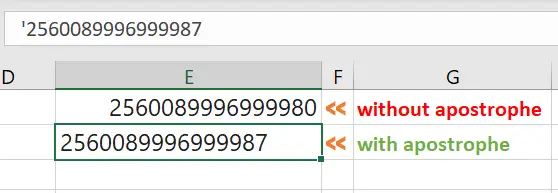
The first solution is to insert a leading ‘in front of you number. So, for example ‘2560089996999987 would display correctly. You can see in the screen grab below without the apostrphoe Excel changes the digit to zero.
Solution 2. Using The Text Import Wizard.
Now, onto the second solution. If you are importing your data from a .rtf or.csv file, when the text import wizard appears, scroll to your field containing the offending ‘longer than 15 digits’ number. Click on it, then in the upper right hand section of the window, change the field of column type from ‘General’ to ‘Text’.
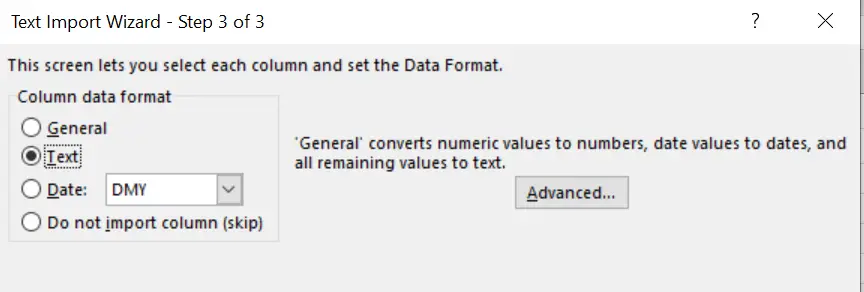
Note. The Text Import Wizard is a legacy function. If you are using esrlier version of Execl then you will be ok. If you have a newer version of Excel you will see the Get & Transform Tools. So since In Excel 365 and 2016 the “Text Import Wizard” has been removed. But, if you want to use the legacy version of Text Import Wizard you can get it back.
Restore The Text Import Wizard.
Follow the steps below to restore the original text Imprt Wizard.
- FIle | Options | Data
- Select Show Legacy Data Import Wizards
- Hit Ok

You can now go ahead and use the Legacy Data Import feature to comportably import your data the way you want to.
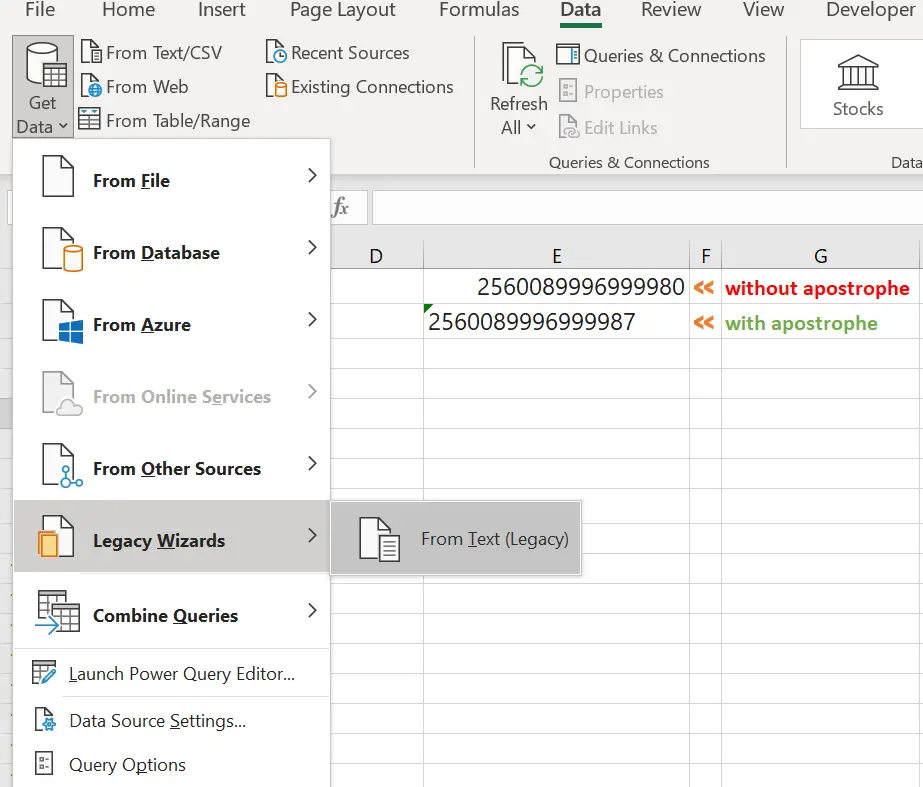
Next select your file to import. After selection hit Import.
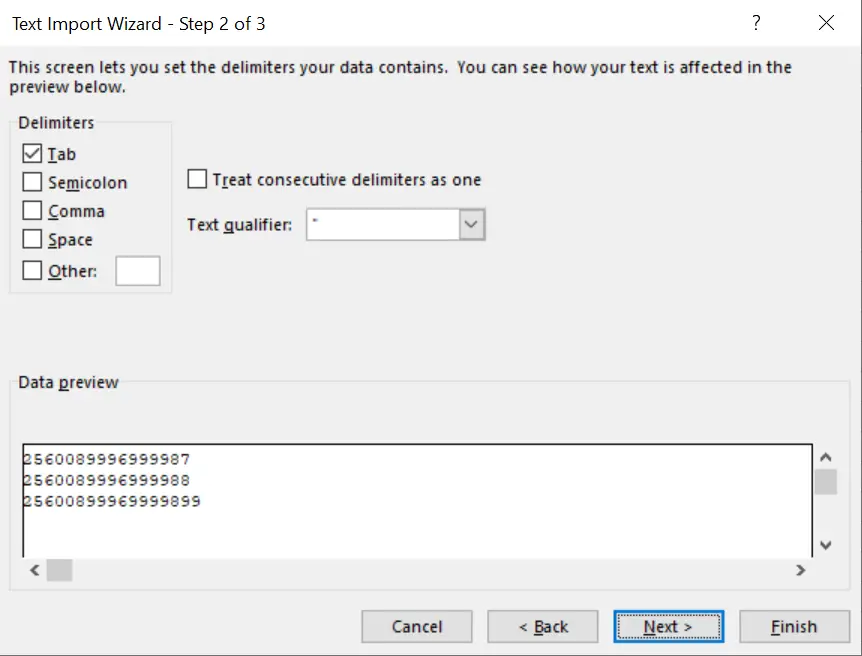
I always make sure to check out any data I am importing to see if this issue may occur. It is easier to catch the issue at import stage than having to either get a leading apostrophe or re type. Who wants that right?.
More Excel Tips.